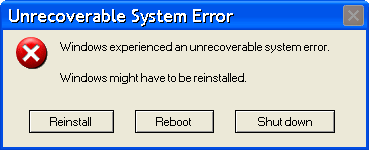
After having tried to install a mouse (yes you heard me right, install a mouse) on Windows (now it makes sense, right?) I’m expecting to see a three headed dog walking on its hind legs.
Now, my mouse (my Microsoft mouse) was not supported by my computer (running Windows) so I had to rip the newer mouse from my Linux box and plug it into the Windows box, and after downloading, confirming the usage agreement (huh?) the mouse driver software installation progress *phew* started. After a lengthy stare period featuring a progress bar I finally had my mouse.
Yay!
While all that progressed I plugged the old (“unrecognizable”) mouse into my Linux box and lo and behold, it worked the instant I plugged it in. (Actually, no I’ve learned not to “lo and behold” Linux like decades ago, it’s SOP for that OS that simple things just work – sure you have to choose your graphics card wisely etc, but hell, a mouse pointer…?)
But Microsoft’s OS is superior… that’s what the Microsoft aficionados are whining anyway.
Oh, and pray the gods you always have access to Internet or your supersplendidgloriousfinesuperior Windows will have to work without a mouse…
I just stumbled onto Facebook (it wasn’t my fault!) and when I wanted to leave I had to press an “are you sure you want to leave Facebook”-button.
So, I checked and still today Facebook isn’t part of the standard model of physics and it doesn’t seem to be part of any of the big religions… so yes, the universe WILL survive without Facebook.
I clicked, “YES I want to leave” and I’m still here!
You may not think of it as such, but if you have one of the more modern Smart Phones out there (iPhone, Android) you’re carrying around a small computer with more capacity than a desktop or laptop computer with a few years under the belt.
The threat are definitely real. Hacking a phone would make it possible to read your e-mails, use the phone as a listening device and hear your conversations or make it call a high price number in Bahrain. What you see happening to phones on TV and movies are not really so far fetched – although it usually requires more than just being near the phone like the guys in Person of Interest, before it gets hacked.
Part from these basic actions cracked.com lists the following things that can be done with a hacked phone or how a phone can be hacked:
The tilt sensor can be used to figure out what you’re typing on your keyboard, if the phone is placed on your desktop.
Your credit card information can be stolen, if the phone is just near the cards.
Your phone can be hacked by free charge stations.
So, what to do?
Install anti-virus software
However, think of the following:
Always install the software from a trusted source (I.e. the app-store, or app-market or Google Play). Do not download an anti-virus program from some website!
Make sure you get software that does what you want it to do, there are a few variations. Read the specs!
If you suspect your phone has been hacked, you may not be safe unless you do a total factory reset of the phone before you install any anti-virus software. Services like Gmail, Google Drive, etc might help you keep your important data even after a reset.
I’ve been running Avast Anti-Virus, and Avast Anti-Theft. The anti-virus software scans applications I install (which, in a contrary of the popular depiction in TV series, is the most common way of infection). The anti-theft software makes it possible for me to locate or wipe the phone if it gets stolen (I have linked my phone up with Dropbox, so wiping it on theft is probably a smart thing to do).
Of course, part from having a good anti-virus software installed, you also need to follow a few rules:
Do not install software from unreliable sources if you can avoid it. Just because you have anti-virus installed you can still get infected simply because your virus definitions may not have been updated. Continue to use caution.
Bring your own charger.
Do not leave your phone unattended, or at least put in a lock password or lock pattern. Android has both, I am not sure what iPhone has, but it shouldn’t be too easy to just pick up your phone and install a Nanny-app just before the big board meeting.
In fact, if you have a really important meeting, you might want to turn off the phone, rip out the battery and leave it in the next room – Belorussian (I think it was) rebels used to do that when the government used the mobile network to spy on them.
If you’re a fan of the TV series Pretty Little Liars, where a mysterious person, or group of persons, called “A” seems to have a magic ability to know everything about the main characters and what they are doing in exact that moment. You might want to think “hacked phones” and “A” may not seem so mysterious anymore…
One can only hope this only happens in TV, but a few irresponsible app installs later you may be monitored by NSA/China/your jealous ex… Or… well… I think we’re monitored by those three entities regardless of a hacked phone, but you get my meaning!
I work with installing and configuring software products. The following “documentation” on backup procedures for an imaginary software system called “Wolfram Idea Management” came to me in the half asleep/half awake stage just after waking up, but kind of before realizing it has happened.
And, no, I hope this has never happened for real! If there is a Wolfram Idea Management system out there, any likeness to that system is coincidental even if per chance the following document could have been ripped out of that software package’s manual pages – then any likenesses are still just coincidental. I’m just that good! (No I do not work with a system called Wolfram… Although the phrase “backing up concerned files” do come from work…)
I decided, after some “experiences” to add a blog post about adding a link to the WordPress RSS feed of your site.
I may be missing something, or may not have come across the right plug-in or something else, however, I was unable to add RSS to my site. Either I got my feeds full with garbage and (I think) advertising from the plug-in author, or the simple little itsy-bitsy tiny RSS feed plug-in managed to make all my “Edit” buttons and links unreachable in edit mode (like when you wish to change the Publish date or the post slug).
Now there is a built in WordPress RSS feed widget, however it imports some one else’s RSS feeds while I want to have a link on my page that exports my RSS feeds. And, no, using the built in plug-in on your own site does not seem to make anything else than a list of links to your posts.
Either someone forgot to explain RSS feeds to the WordPress coders or, as I said before, I may not understand it.
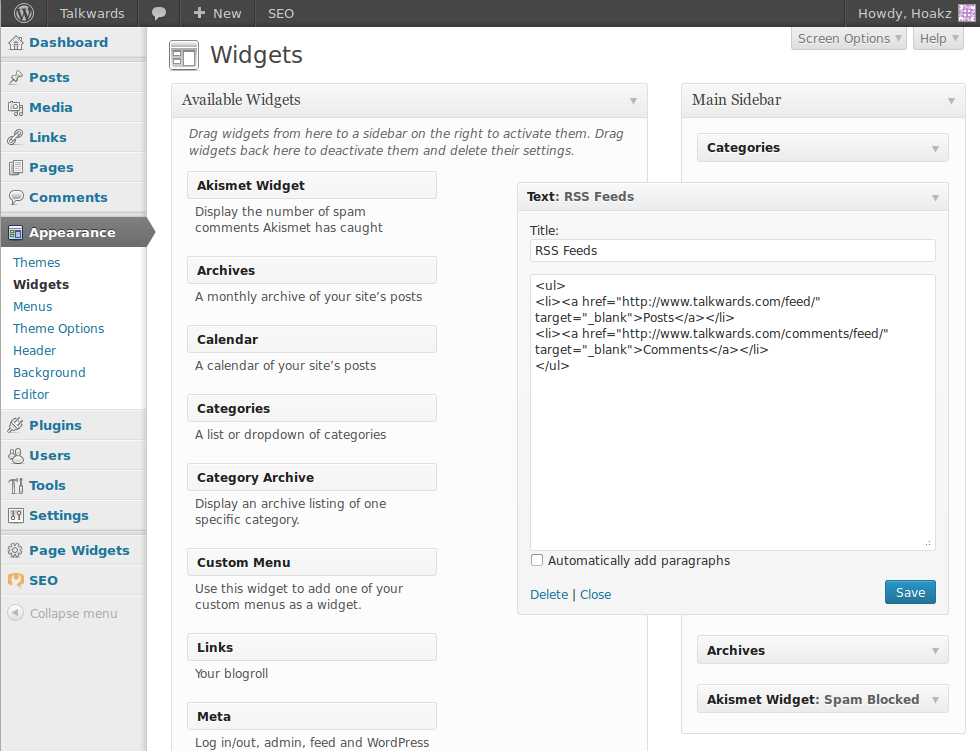
Adding a WordPress Text Widget (click on the image to get a full size version)
You do this via “Appearance > Widgets” from the admin menu in WordPress.
The exact name of the widget is simply “Text”. It comes built-in with WordPress.
I used the text “RSS Feeds” as Title.
2. Put some HTML in the Widget
Here are two variants, one for the twenty eleven theme and one for the twenty twelve. The only difference is that the twenty eleven looks better as a list. This text goes into the larger text field of the widget.
In IT-support jargon the expression “PEBCAK” (meaning “Problem Exists Between Chair and Keyboard”) is used to blame the user of the system for any computer-related problems they are experiencing while using said system – since they are located “between the chair and the keyboard” in most usual situations…
PEBCAK can be found long before the program reaches the end-user
I had a fun thought about the expression PEBCAK. Given my many years in IT development, I have observed two things:
Few programmers write their programs without sitting on a chair in front of a keyboard…
PEBCAK is just as likely to start way before the software reaches the end-user.
If you think the Project Cartoon is a gross exaggeration (you are probably an ordinary, unsuspecting computer user, and a victim :P…) I have to inform you, it’s not… The sad truth is that programmers have never been in control of systems, and even the most stable and dependable systems have flaws.
Even NASA has PEBCAK
Did you know that up until 2007 the space shuttles never flew missions over the new year… why? Because their computer systems, programmed in the 70ies, had no stable support for year changes…
Searching to find my source on the above statement only produces two Slashdot articles with links to, now non-existing, articles on CNN and Reuters. (Although I just came across this fact a couple of months ago, so either the conspiracy is recent, or my Googling skills are decreasing…) Anyway, here’s the Slashdot links:
And the forum post “NASA Computers? Happy New Year – NOT!!!” goes into it in some detail. It, in turn, quotes an article in “Florida Today” from Nov 7, 2006, titled “Glitch may force NASA to launch shuttle early; Dec. 6 slotted for Discovery”
I’m not going to search for pacemaker system errors or similar, but I can guess the mitigating circumstances are that you’re not in space when the problem occurs and might actually get into the hospital in time…
If you like to read more about programmer initiated system errors (and errors initiated by IT projects) you should check out The Daily WTF.
I think Sweden adopted ISO 8601 sometime around when it came. Before that we would write dates as day/month-year (that would be discouraged format number 11 on the image to the right).
Then came along Internet Information Server (IIS) invented by an American firm you might now, called Microsoft. In the US where Microsoft lives, dates are written using discouraged format number 1, or perhaps 2, unless it’s 3 or 4, I never manage to keep track.
Most of the time it’s possible to just ignore the highly illogical way of mixing up days and months and years in the US way of writing things. ISO 8601 goes from larger to smaller, the old Swedish way went from smaller to larger, the US way goes from uh… large to smallest, to largest…
However, a project I was involved in a couple of months ago used some form of standard date widget in IIS (Internet Information Server, Microsoft’s Web Server) that used discouraged format number 1 above.
Now for the fun part. In my humble and naïve mind this should be a question of just setting a language setting somewhere in the web server to get it right. Apparently it wasn’t (!?) Instead everyone was running with the totally confusing US-dates. The budget did not have room for making the change, and it seemed everyone humbly adopted… after all, there was a “date browser” that could be opened pressing a button (first time it took a minute to open, but then it was business as usual). I’m guessing they used that function to get their dates, or perhaps I’m just an old fossil that doesn’t adopt well.
So the punchline (unless the previous sentence wasn’t punchline enough for you…): yeah standard until some guy comes along and wants it otherwise, and this guy has all the power… then it’s a (quote-unquote) “standard” and not a standard any more.
If you feel like your Ubuntu is way to benevolent, you can always go Satanic.
Of course, I thought this was the edition I had installed, given Unity’s behavior, and the fact that my raid-devices are dropping like flies (they passed a badblocks scan, and as far as I can tell they are working again), but alas, perhaps I need more goat blood, hell fires and ritual chants?
The versioning of Ubuntu SE is less time constrained. Instead of using the year and date, like Ubuntu does, the numbering is simple: 666.8, for instance is the version number of “Undead Legion”, followed by 666.9 “Microsoft Massacre”, and 666.10 “Necrophiliac Necromancer”.
On the plus side, I may be able to scare my computer into submission by burning a CD of satanic edition…
OK, seriously. I fear Ubuntu Satanic Edition may be way too old to do anything with… (um although upon closer examination, they seem to have a news item from 27th of uhh January, 2012… that’s a year ago…) but on the other hand… Isn’t the current edition way too satanic? I think I could get a break from all the unholy shit going on if I installed this one with goat heads, flames and blood and everything else that belongs!
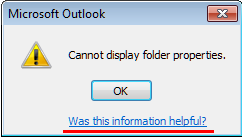
Not only doesn’t it work, it laughs at you while you try using it… or well, it’s being scornful. I’m talking about Microsoft Outlook, that gave me the following comment (underlined red) when I tried to use it today.
So was the information helpful?… uh… I guess compared to faking that it can do the work and then tell me in about a week that sorry, I was just kidding, it is in fact helpful to get to know it cannot be done already on Monday…